
Know Which Cards Sync From Your Bank — Link Status on Every Card

When a card is linked to your bank, OfferBee logs its credits from your statements for you. Until now, it wasn't easy to tell which cards were set up that way and which ones you were tracking by hand. OfferBee 1.0.4 puts the answer right in your Wallet.
👛 Your Wallet at a glance
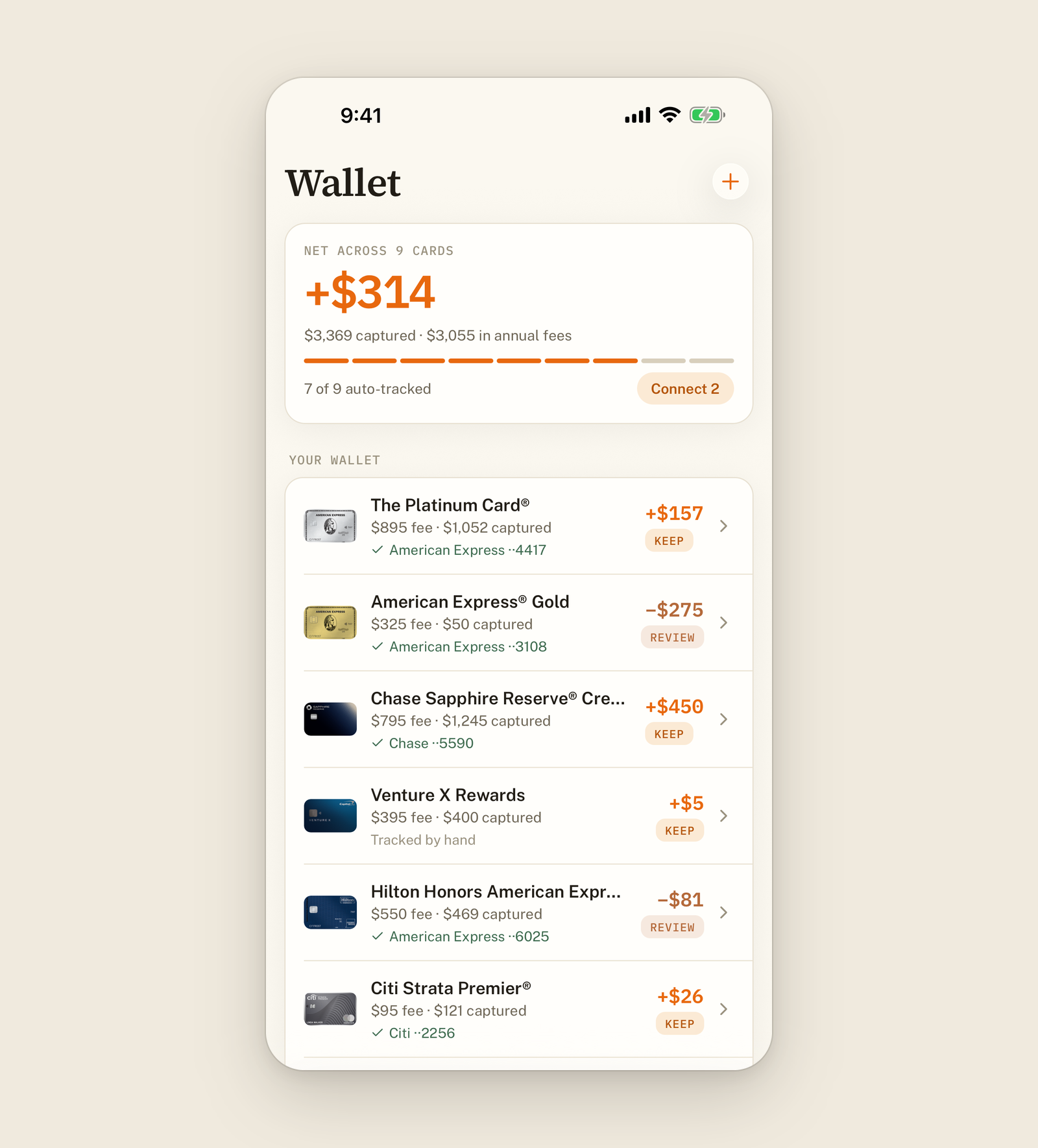
Every card on the Wallet tab now has a status line under its name:
-
Linked: a check and the bank account it syncs from, like American Express ··1009.
-
Tracked by hand: nothing syncs this card yet, so you log its credits yourself.
-
Reconnect: your bank needs you to sign in again before the card can sync, shown as Reconnect Chase.
When some cards aren't syncing, the top of the Wallet shows how many are covered, like 8 of 10 auto-tracked, next to a Connect 2 button. Once every card syncs, it goes away on its own.
🔌 Connect the rest in one place
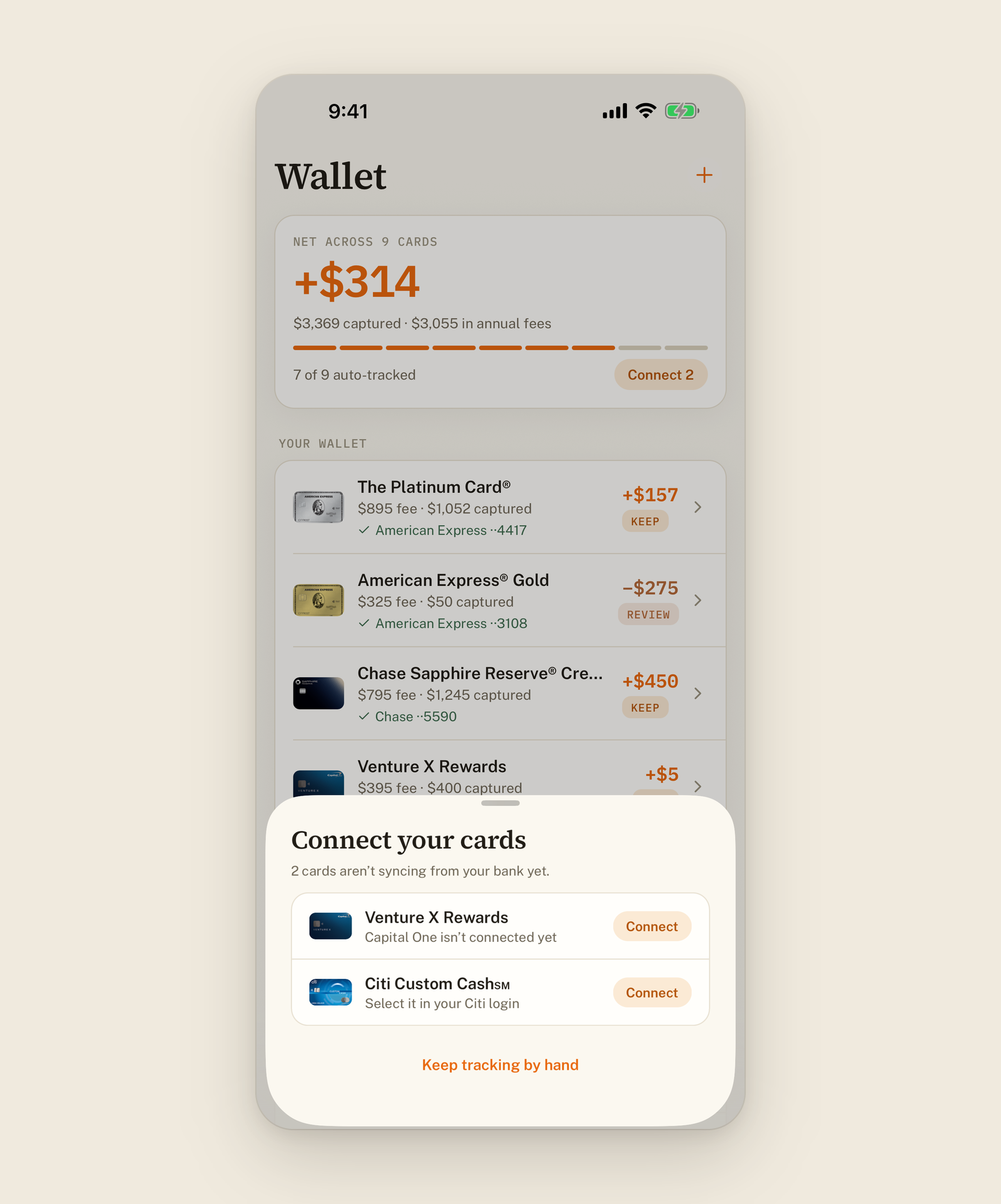
Tap Connect and a sheet lists only the cards that aren't syncing, each with its own Connect or Reconnect button. A short line under each card says what's missing, like "Capital One isn't connected yet," "Chase ··4421 is ready to link," or "Select it in your American Express login."
💳 Bank connection on every card
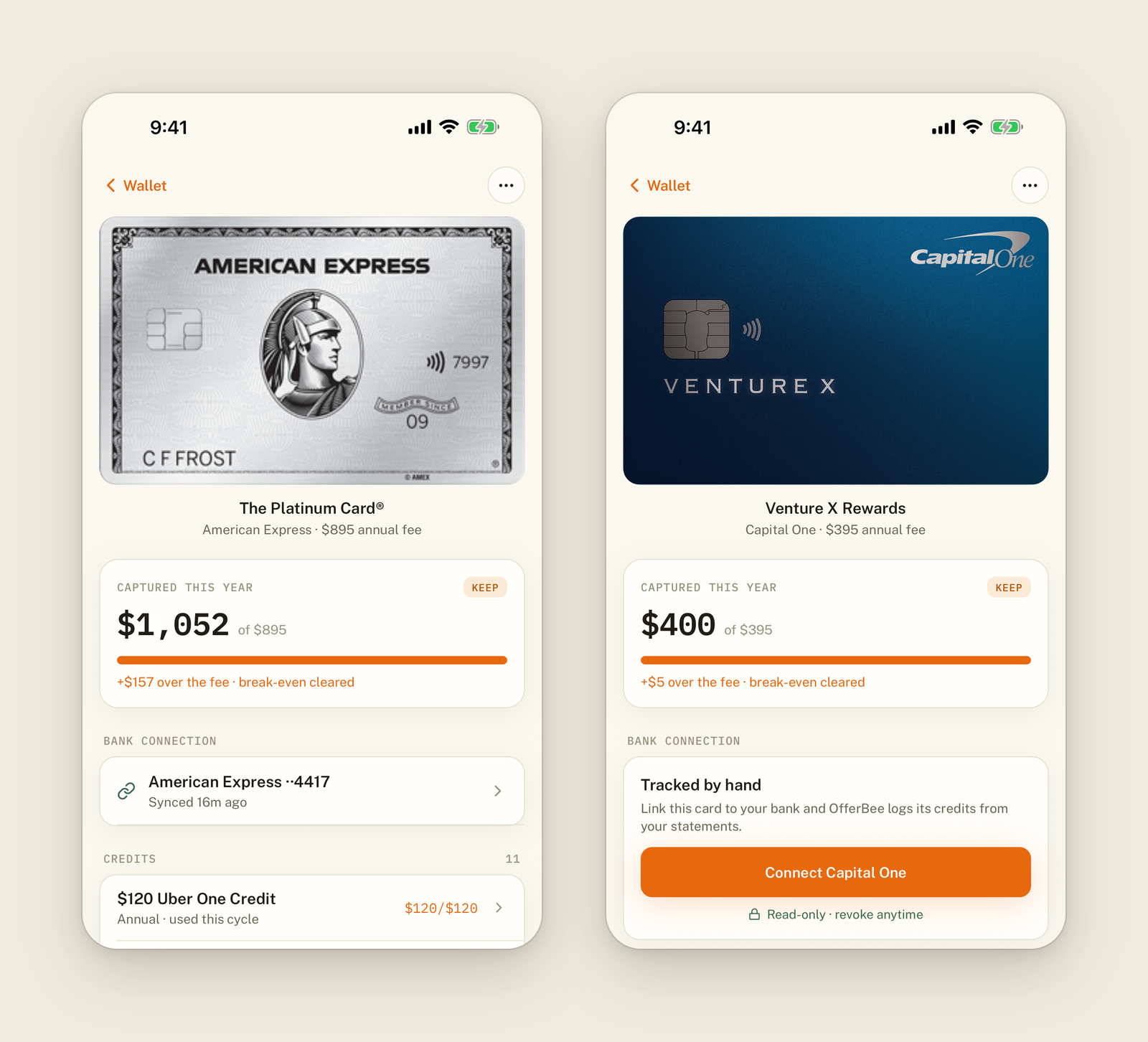
Open any card and you'll find a new Bank connection section. A linked card shows its account and when it last synced. Any other card gets one button that names the fix, like Connect via American Express or Reconnect Chase. On a card tracked by hand, OfferBee also notes that the connection is read-only and you can revoke it anytime.
✨ Good to know
-
Connected accounts: Settings › Connected accounts now counts your wallet cards too, including any you're tracking by hand.
-
Plans: bank syncing is part of OfferBee Premium, including your free trial. If your trial or plan ends, linked cards show "sync paused," and logging credits by hand stays free.
Availability: bank link status is in OfferBee 1.0.4 for iOS and Android, on the App Store and Google Play now.